


Color-grade your videos to perfection
We’re excited to announce that hundreds of LUTs are now available for you to download on Artlist! LUTs have long been one of the most important tools for editors in the post-production process, specifically when it comes to color grading. Now, with access to Artlist LUTs, video creators have a wealth of new options in how their films look and feel.
In this blog, we’ll take a look at LUTs in general, explore the new category in the catalog, and understand how to download and use them in your own projects.
What are LUTs, and why would you use them?
LUTs, also known as Look-Up Tables, are essential tools in video editing that convert input color values to specific output values, simplifying your color grading and adjustment processes. Put simply, they allow for much quicker manipulation of color tones and styles.
You can learn more about LUTs in this dedicated blog article.

Why Artlist’s LUTs are perfect for video creators
Artlist’s new LUTs collection is the result of careful work led by our expert in-house colorists, who are passionate about making these LUTs as user-friendly and high-quality as possible. “We made sure they are optimized to work across a wide range of shots,” says Dor Zammir, a Colorist at Artlist. “They’re designed to enhance the footage, helping you achieve beautiful, professional results while minimizing the risk of harsh colors or contrasts.”
Creating LUTs that elevate visuals without overpowering them is no small feat, and Dor’s team dedicated months to this balancing act. Artlist LUTs are made to keep your footage looking natural while bringing out its best qualities, so users can enjoy filmic or cinematic looks without compromising on details. In fact, Dor and his team use many of these LUTs in their own color grading work because of their quality and versatility.
Each LUT in the catalog is optimized for Rec. 709 color space — a widely used color standard — making them compatible with a broad range of footage and setups. “We wanted our LUTs to be usable across as many shots as possible,” explains Dor, making sure that video creators can find the right look easily, whether they’re after a dramatic mood or a soft, vintage style.
Artlist’s intuitive browsing interface also makes finding the right LUT easier. Gone are the days of endlessly scrolling through lists of LUTs or downloading and manually testing LUT packs.
On Artlist, you can select sample footage that’s close to yours, and then browse and preview LUTs by mood, style, or specific adjustments like contrast and saturation, saving tons of time. As Dor puts it, “What’s important is that our users find what they want fast and enjoy using the LUTs.”
The result? A LUTs collection that’s as reliable and easy-to-use as it is high-quality, built for everyone from beginners to seasoned professionals.
How to use the LUTs category on Artlist
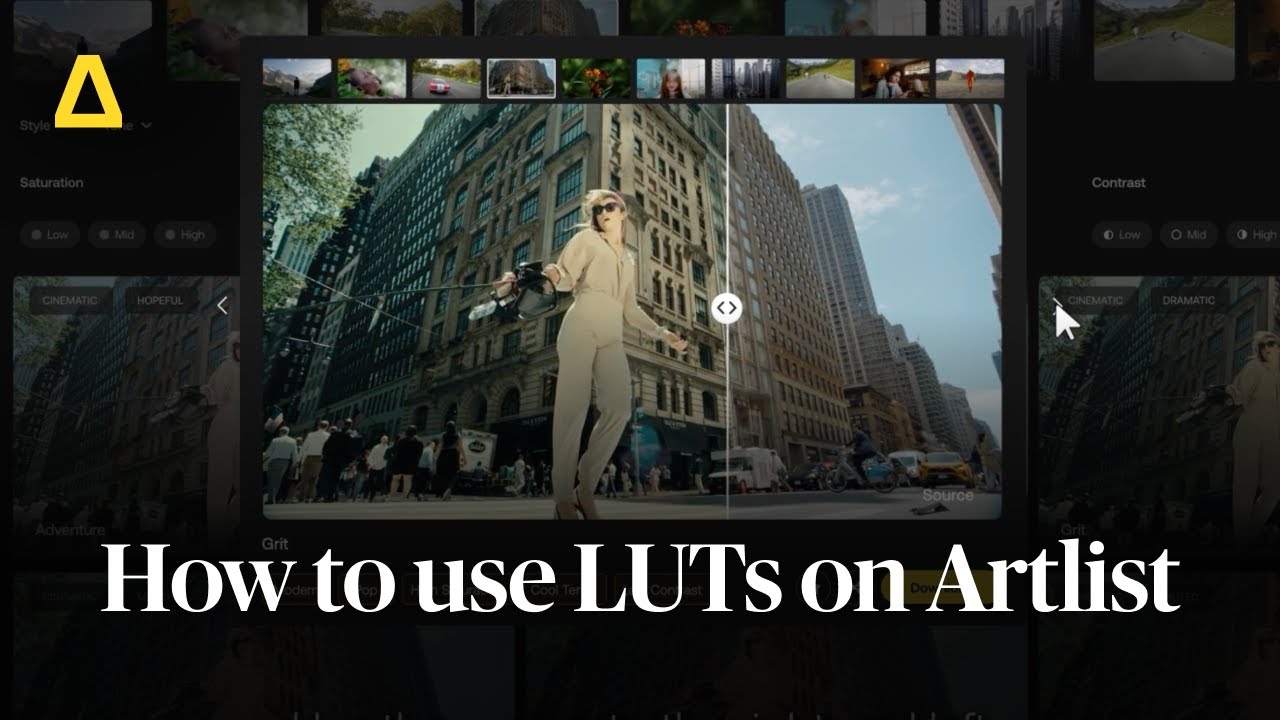
Getting started with LUTs on Artlist is very straightforward:
- Start by navigating to the LUTs option in the left-hand menu.
- Choose the sample footage that best matches the style or lighting conditions of your project. This helps you see how each LUT might look in a similar context.
- Refine your search by adjusting filters for temperature, saturation, or contrast. You can also explore by Style, with options like cinematic, vintage, and nature, or search by Tone, which covers a whole range from dramatic or moody to soft and playful.
- Once you find a LUT that catches your eye, click on it to view a full preview. You can also use the arrows on the right and left to browse through different LUTs on the same sample footage to compare styles.
- When you’re ready, simply download your selected LUT. Then, import it into your preferred editing software to start enhancing your footage!
This streamlined process makes it easy to test and choose the best LUT for your project without the hassle of bulk downloads or trial-and-error.
Related Posts


How to use LUTs in every editing software
Here’s a quick-start guide on how to use a LUT in your editing software.
Adobe Premiere Pro
Go to the Lumetri Color panel, then under Basic Correction or Creative, select the Input LUT dropdown and choose Browse to locate the LUT file.
DaVinci Resolve
Open the Color workspace, right-click on the Node where you want to apply the LUT, and select 3D LUT to load your LUT file.
Final Cut Pro
Select the clip, go to the Effects browser, search for Custom LUT, drag it to the timeline, and choose your LUT from the options or import one.
Best practices for using LUTs in your videos
There are many ways to apply your color-grading LUTs. Here are a few top tips and rules that can help guide you through the process and get the most satisfying results.
Adjust Intensity
Remember to always take some time to fine-tune the LUT’s intensity to avoid over-processing. Dialing down the strength ensures a more natural look and prevents harsh color changes.
Combine with other adjustments
You should use LUTs as a starting point and combine them with other color corrections, like exposure, contrast, or saturation, to achieve balanced and refined results.
Match footage
You should ensure the LUT you choose aligns with your footage’s exposure and white balance. Applying a LUT to well-balanced footage will give you better, more consistent results.
Test multiple LUTs
Experiment with different LUTs to see which one enhances your visuals while preserving the detail, then adjust it to your taste and vision.
Subtlety is key
Most professional colorists will tell you that less is often more with LUTs. A subtle adjustment can improve the aesthetic without drawing attention to the grading itself.
Which Artlist plans include LUTs?
LUTs are included in all Max and Footage & Templates plans at no extra cost. If you’ve already got a plan with LUTs included, you can get started downloading and using them in your projects right away. Subscribers with Music & SFX plans need to upgrade to Max to get full access to the LUTs category.
To learn more about the different plans available for Artlist, check out this dedicated article and then sign up to start using LUTs today!
Get the perfect look with Artlist’s LUTs
Artlist is thrilled to introduce hundreds of new LUTs, giving you a vast array of options to enhance the look and feel of your projects.
The user-friendly interface makes it simple to browse, preview, and download LUTs tailored to your project’s needs, whether you’re aiming for cinematic, vintage, or modern looks. Start exploring the new LUTs on Artlist today to elevate your content with professional-grade color grading.
Did you find this article useful?


