


Motion just got directable, with Kling 3.0 Motion Control.
Take real motion from a reference video and apply it to any character, in any scene, with consistent identity and realistic performance. This is a new level of control for AI video. And it’s now available in the Artlist AI Toolkit.
Stop guessing motion. Start directing it.
Most AI video tools try to interpret your prompt. Sometimes it works, and often, it doesn’t. Kling 3.0 Motion Control changes that.
You upload the motion — a walk, cycle, dance, or reaction shot — and Kling uses that video as a motion blueprint to rebuild it in a brand new scene, but with the same timing and energy you want.
Real motion, rebuilt from the ground up
Kling’s motion control doesn’t just mimic movement — it reconstructs it. It captures:
- Subtle body shifts
- Head turns and eye lines
- Facial expressions and emotional cues
Then the model applies them to your generated character using image to video with motion reference. The results feel grounded, and performances look intentional.
Faces that hold up — even in motion
One of the biggest breakthroughs in Kling 3.0 Motion Control is identity stability.
Consistent facial identity from any angle
Your character stays recognizable:
- During camera movement
- Across different angles
- Throughout cinematic shots
Facial consistency, even when the face is hidden
If a face is briefly hidden or covered — behind a hand, an object, or a turn — it comes back the same, with very little or no drift!
Real emotional expressions
This Kling model captures subtle facial movement, so emotions carry through the entire shot — not just frame to frame, but moment to moment.
This is powered by Element Binding, which connects facial identity directly to motion data.
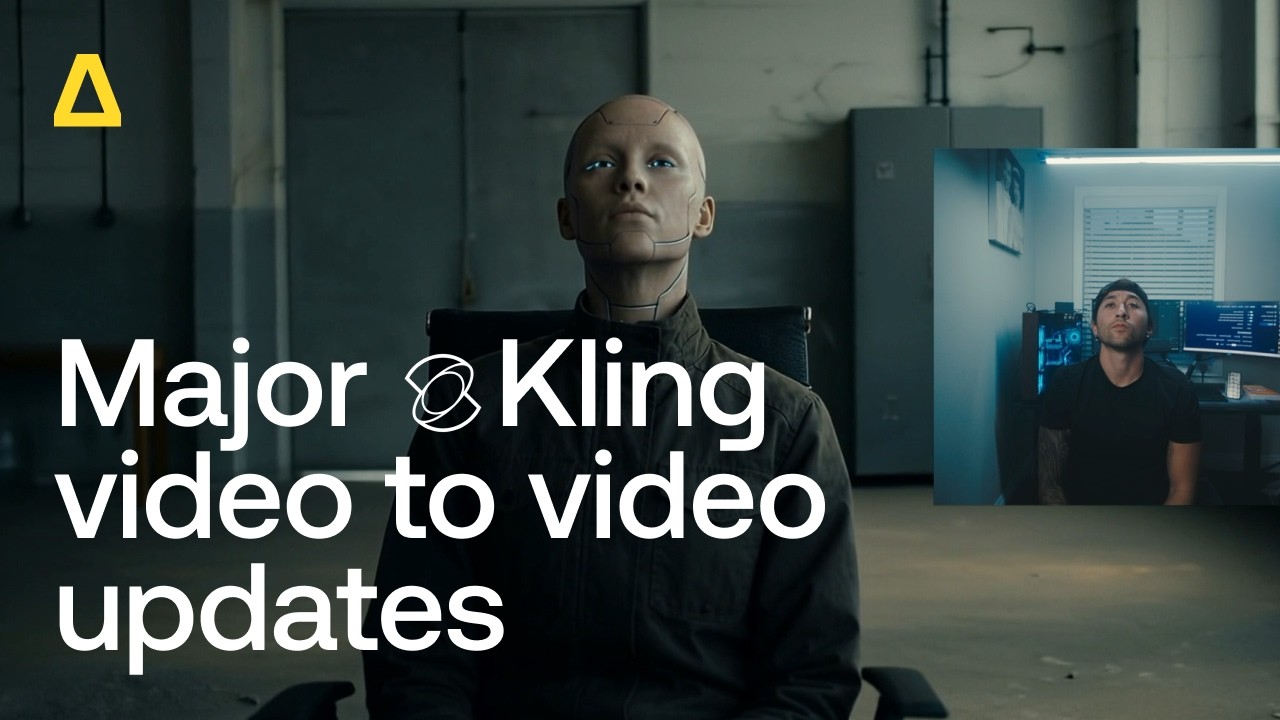
Complex motion, clean results
Kling builds on earlier motion control (read more about Kling 2.6 here) with stronger:
- Identity stability
- Motion accuracy
- Emotional realism
That means it can handle:
- Fast movement
- Layered actions
- Longer sequences
All without characters breaking or drifting.
More control with file tagging
With Kling 3.0 Motion Control on Artlist, every image or video you upload gets its own tag, e.g. @video 1.
You can reference these tags directly in your text prompts to control how each asset is used. Instead of describing the input, you can easily and precisely reference it.
It’s a simple way to get more accurate motion, visuals, and results.

Built for how you actually create
Here’s how to think about when to use it. Use Kling 3.0 Motion Control when you want to transfer motion into a new scene.
- Turn a real performance into a stylized video
- Apply the same motion to multiple characters
- Recreate a shot with a completely different setting
Use Kling 3.0 or Kling O3 when you want to edit or transform an existing video.
Here is a quick look at which Kling model to use dependent on your project needs:
| Use case | Best model | What it’s built for | Key strength |
| Transfer motion into a new scene | Kling 3.0 Motion Control | Generate a new video using real motion from a reference clip | Precise motion replication with consistent identity |
| Edit or transform an existing video | Kling 3.0 | Modify footage while preserving structure | High-quality video-to-video transformation |
| Fast, flexible edits | Kling O3 | Quick iterations and creative adjustments | Speed and versatility |
| Generate video from an image | Kling 2.6 Pro | Turn still images into motion-driven video | Cinematic motion and visual detail from a single image |
How it works inside Artlist
The workflow is simple:
Use this step by step guide to direct motion with image and video references.
Choose Kling 3.0 Motion Control from the model dropdown.
Upload a reference video with video to video or upload or generate a character image.
Generate your scene.
View, download, or recreate from your sessions on the left.


High-quality output, ready to use
With the AI video model, you’re not just testing ideas, you’re creating usable footage, and the technical specs help you to do that:
- Resolution: Up to 1080px
- Duration: Up to 30 seconds
- Supports cinematic camera movement
- Works across different aspect ratios
Choose your tier: Standard or Pro
- Standard: Optimized for faster generation, ideal for quick iterations or social clips.
- Pro: Maximum fidelity, perfect for cinematic sequences, complex motions, and detailed facial performance.
You can easily select your preferred tier directly in the Artlist AI Toolkit settings, giving you the right balance of speed, quality, and creative control for every project.
What Kling 3.0 Motion Control unlocks
Kling 3.0 Motion Control is powerful and practical, with real results and outputs you can use. Here’s how you can put it to work in the Artlist AI Toolkit:
- Prototype your scenes — Test camera angles, choreography, or character movement without actors or sets.
- Reuse real performances — Apply one motion clip across multiple characters or settings for consistent, high-quality results.
- Produce solo content at scale — Generate cinematic videos with precise motion and expressive faces, all without a full crew.
- Adapt trending moves — Turn dances, gestures, or reactions into branded videos, explainer clips, or social content.
- Storyboard cinematic shots — Visualize complex camera movements and multi-angle sequences before committing to production.
Every use case is about control, consistency, and speed — giving you the creative freedom to focus on story, style, and performance, rather than logistics.
Create anything with direct motion
Kling 3.0 Motion Control really is a game-changer if you want to turn video into a creative input. Instead of having to describe the movement you want to generate, you can direct the motion precisely. Try Kling 3.0 Motion Control now in the Artlist AI Toolkit.
Did you find this article useful?


