Flux 2.0 Pro vs Nano Banana Pro: Which AI image model is best for your needs? (opens in new tab)

Built for professional production, Black Forest Labs’ Flux.2 Pro delivers exceptional detail, photorealistic results, precise color control, and advanced multi-image referencing — all grounded in real-world visual understanding.

Follow these simple steps to start creating with Flux.2 Pro right inside the Artlist AI Toolkit.
Open the AI image and video generator and select the Flux.2 Pro model.

Upload image references or describe your idea with a text prompt.

Get your new creation in seconds, then iterate, edit, or download.

Designed for professional production, Flux.2 Pro gives creators precision and consistency.

Create campaigns with consistent characters, accurate product placement, and brand-true color across every asset.
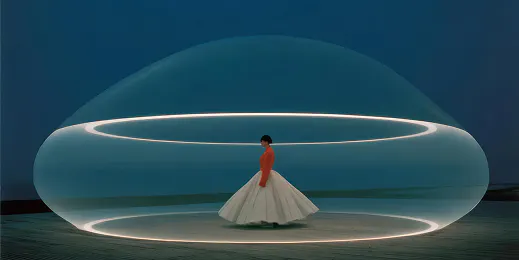
Scale product photography, create contextual lifestyle shots, and generate multiple variants with precision.

Produce interface mockups, infographics, and visual systems with clear, readable text.

Build concepts and storyboards where lighting, costumes, environments, and subjects stay consistent.

Discover how Flux.2 Pro brings higher realism, tighter consistency, and better control to your workflow.
Reference multiple images at once to keep characters, objects, and styles perfectly consistent across every variation.
Generate visuals with incredible detail and lifelike realism that come closer than ever to real photography.
Create complex typography, infographics, and UI mockups with ease — no workarounds needed.
Flux.2 Pro responds accurately to structured, detailed instructions, giving you faster results and less guesswork.
Lighting, spatial logic, and real-world details feel natural, making your images more believable and production-ready.
Discover expert tips, workflow guides, and useful hacks to help you get the most out of your image generations.
Flux.2 Pro is Black Forest Labs’ professional-grade AI image generator. It delivers photorealistic visuals, precise color control, multi-image referencing, and strong prompt adherence — giving you consistent, production-ready results that standard models can’t match.
Flux.2 Pro is available in the Artlist AI Toolkit. Simply go to the Image & Video Generator, select Image-to-Image, choose the Flux.2 Pro model, and start generating high-quality assets instantly.
Flux.2 Pro is built for professional creators. Generate photorealistic product renders, marketing assets with accurate branding, storyboards, social media visuals, and any content that requires consistent characters, style, and detail — all in high resolution and commercially ready.
Yes. Artlist also offers models like Flux.2 Dev and other Flux variations, such as Flux.2 Pro Edit. Check the model dropdown in the AI Toolkit to see all available options.
Still have questions? We're here to help.


